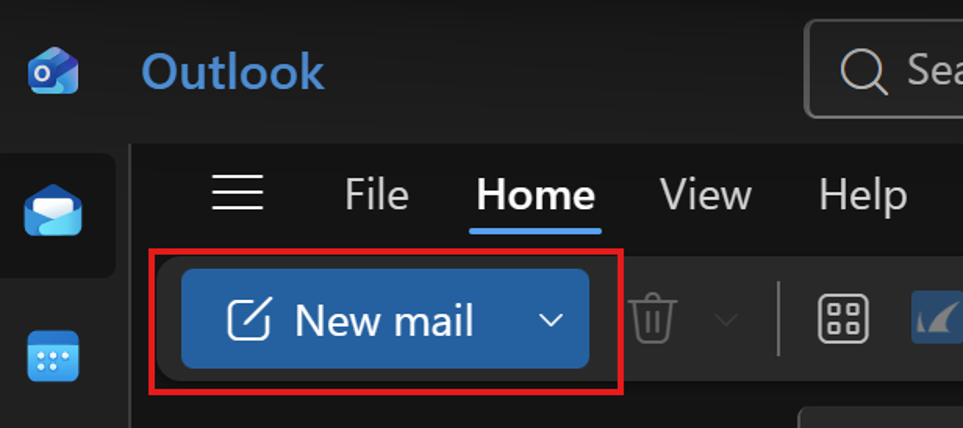
1. In Outlook, start a New Email by using the tab in the top left corner.
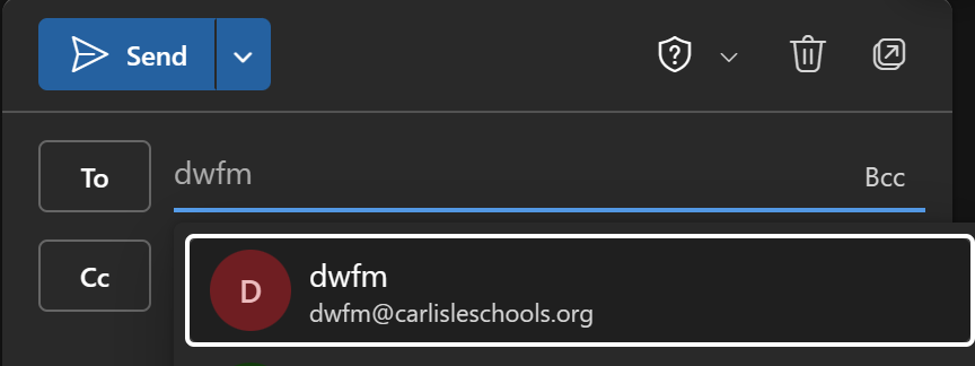
2. In the draft, in the To section, address the email to dwfm@carlisleschools.org.
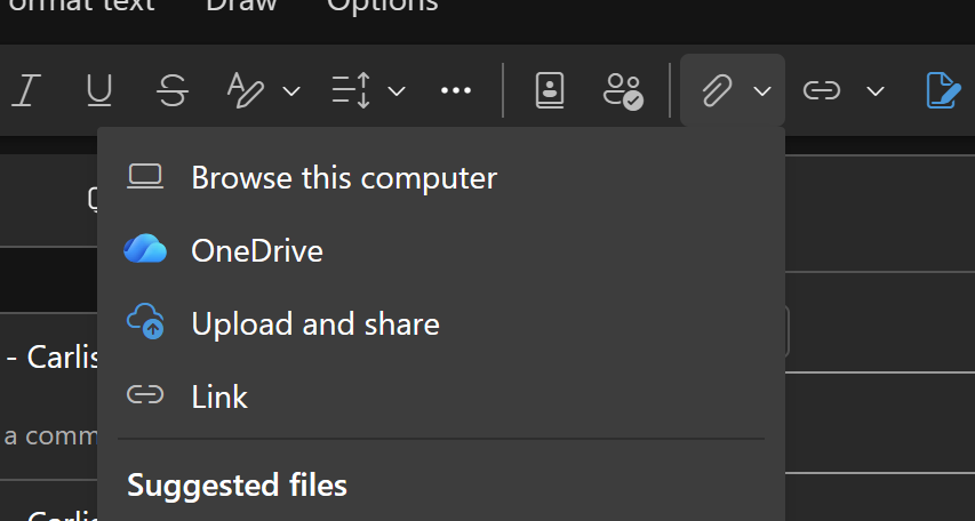
3. Attach the wanted file.
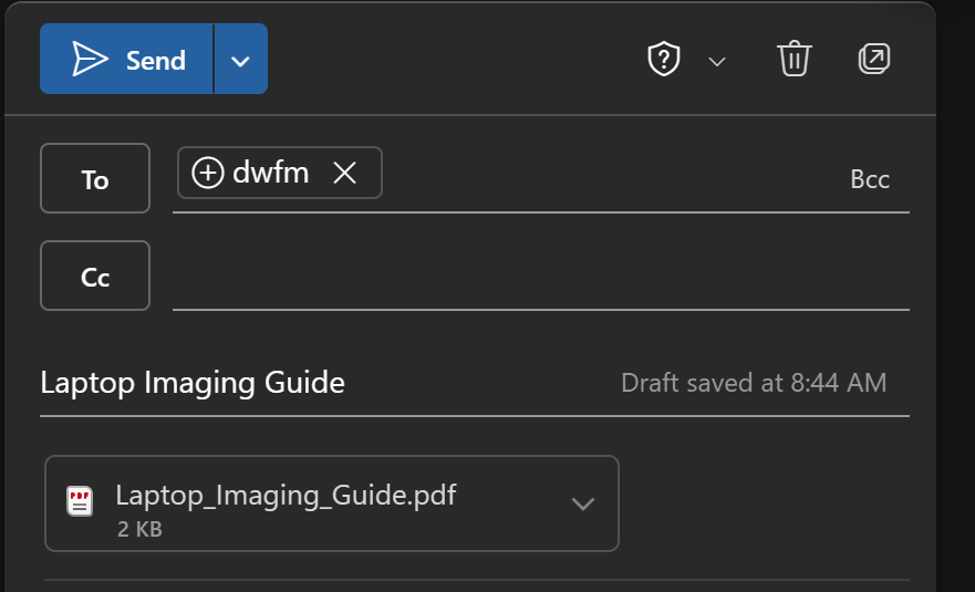
4. You may fill out the subject line. Hit Send.
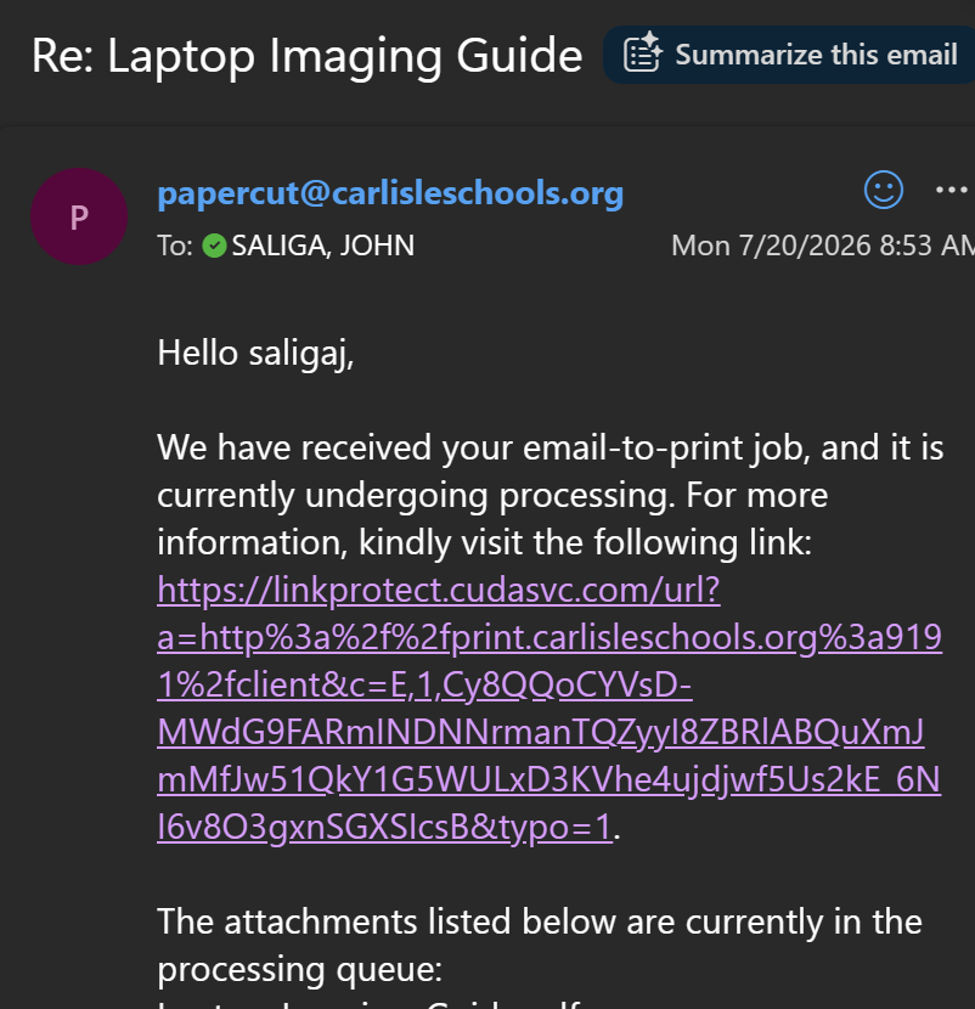
5. Wait until you receive this email from papercut@carlisleschools.org:
6. Scan your FOB at the printer to login and select Print All.