Exporting
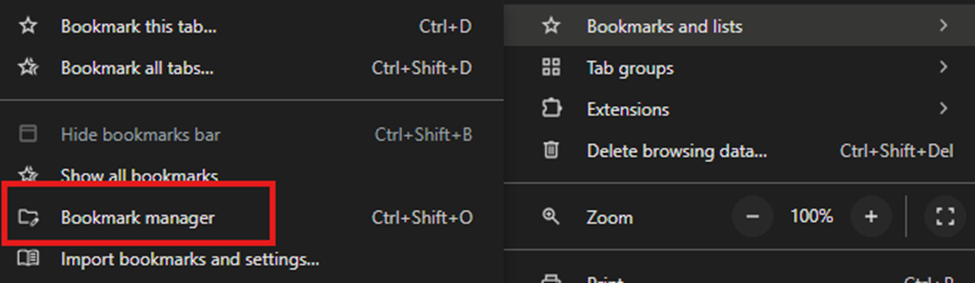
1. Go to the three dots in the top right corner of the Chrome window and hover over Bookmarks and lists
2. Navigate to Bookmark manager
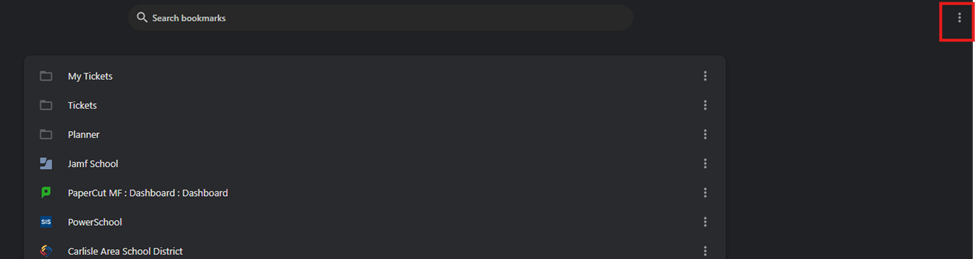
3. Find the three dots in Bookmark manager
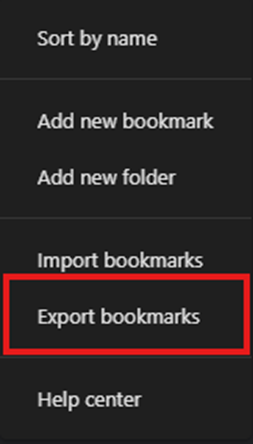
4. Select Export bookmarks
5. Save them to your OneDrive
Importing
1. Go to the three dots in the top right corner of the Chrome window and hover over Bookmarks and lists
2. Navigate to Bookmark manager
3. Find the three dots in Bookmark manager
4. Select Import bookmarks
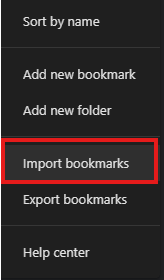
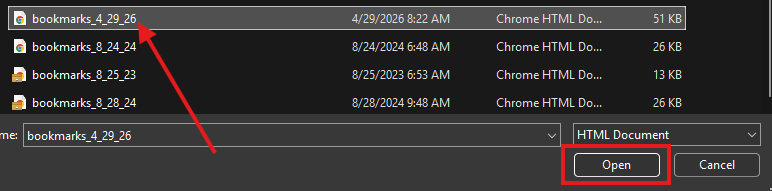
5. Find bookmarks file and select Open